 monthlet
monthlet is a note app where you write and grow notes through AI chat. Starting with 0.14.0, released on 19 August 2026, you can work with Google Calendar events from monthlet. As announced in the previous post, this entry explains how that works.
One point up front, because it is easy to misunderstand: Google Calendar events do not appear in monthlet’s calendar view. Instead, imported events become notes. Below is why, and what you can do with them.
Setup — connecting
Open Settings (⚙) → the Connectors tab → the Google Sheets and Calendar card, and press Connect. A Google sign-in and permission screen opens in your browser; once you approve, you are returned to monthlet. When the card shows the email address of the connected account, setup is done.
Calendar lives on the same card as Sheets. The card that was previously named for Google Sheets alone now covers Calendar as well.
The list of operations on the card shows only the operations available within the scope you approved when connecting. It is not a fixed list — if the approved scope changes, the list changes with it.
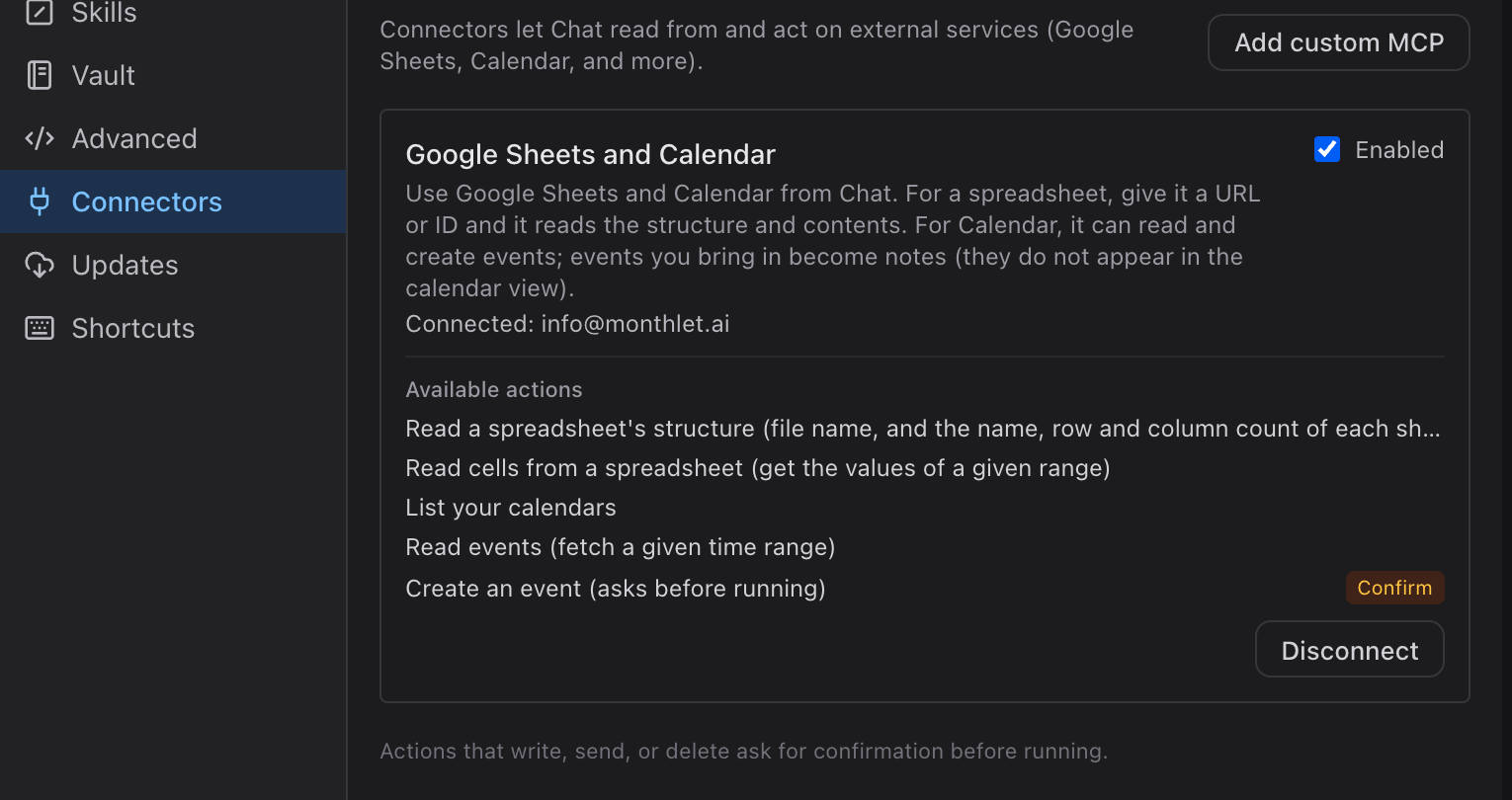
Because of that, if you connected Sheets only on 0.12.2 or later, the calendar operations will not appear as-is. The card displays a message saying permissions are insufficient and asking you to connect again, so press Connect. The connected account stays displayed, and there is no need to disconnect first. The calendar permissions are requested at that point.
Events do not appear in the calendar view
monthlet has a calendar, but it is not a schedule. The description in Settings is the answer:
Automatically detects dates in note titles and bodies and shows them on a calendar. Switch between month, week, and day views.
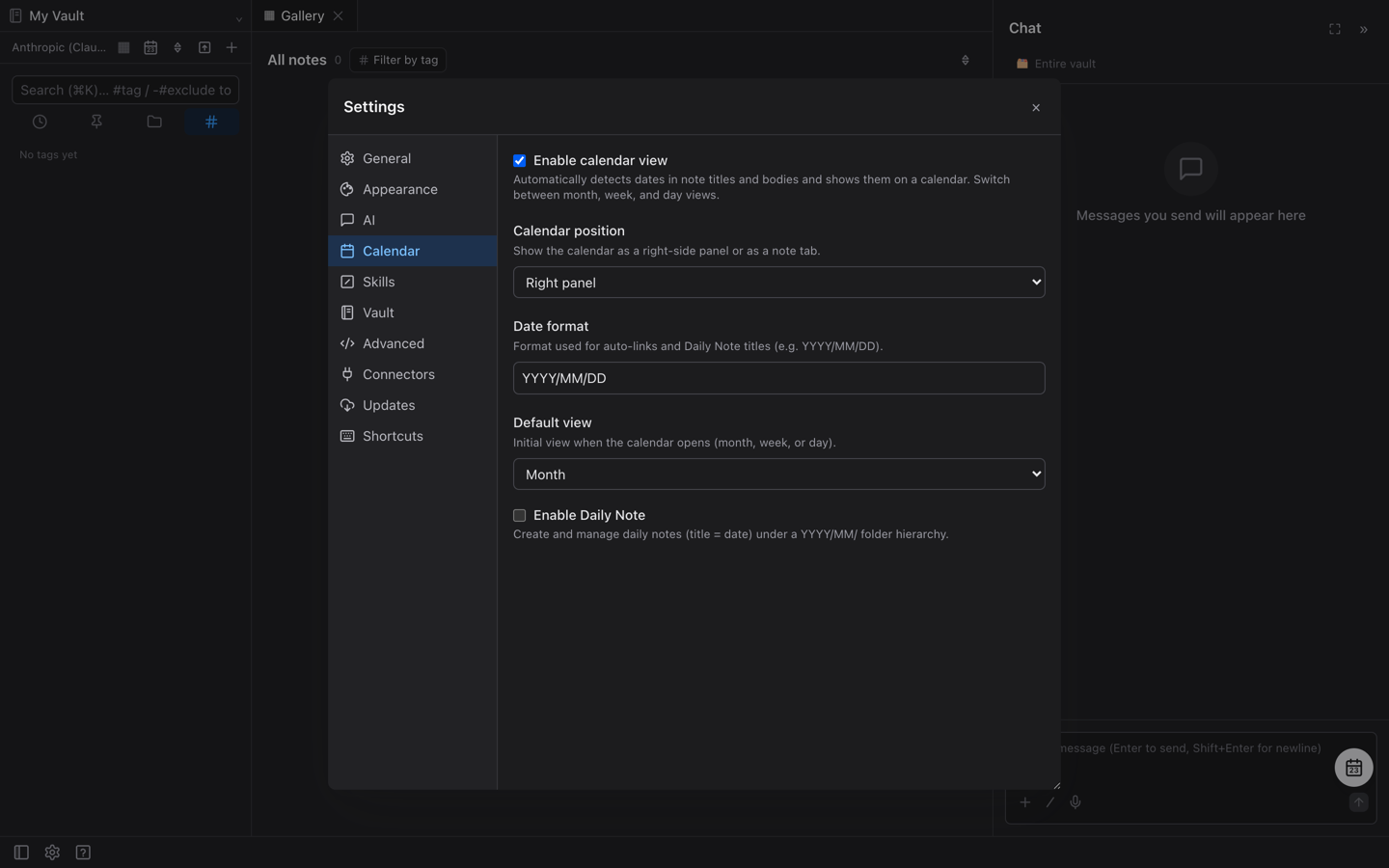
monthlet’s calendar is an index for pulling up notes by date. At present there is no concept of an event and no time scale. There is nothing in monthlet’s calendar that corresponds to a Google Calendar event with a start and end time.
Instead, each imported event becomes its own note. This is also stated in the description on the connector card. Once an event is a note, everything monthlet already does with notes applies. Here are three ways to use that.
Use 1 — put events into the daily note
monthlet has daily notes. In Settings → Calendar, turn on the daily note option and choose a save folder; notes titled with the date are then created in that folder under a YYYY/MM/ hierarchy.
That daily note is where events land.
Put Friday 21 August’s events into that day’s daily note.
monthlet reads the day’s events from the calendar, opens the daily note, and writes a table of times and event names. The note opens normally outside of Chat, so you can keep adding memos underneath each event. The difference is simply whether the day’s note starts blank or starts with the events already in it.
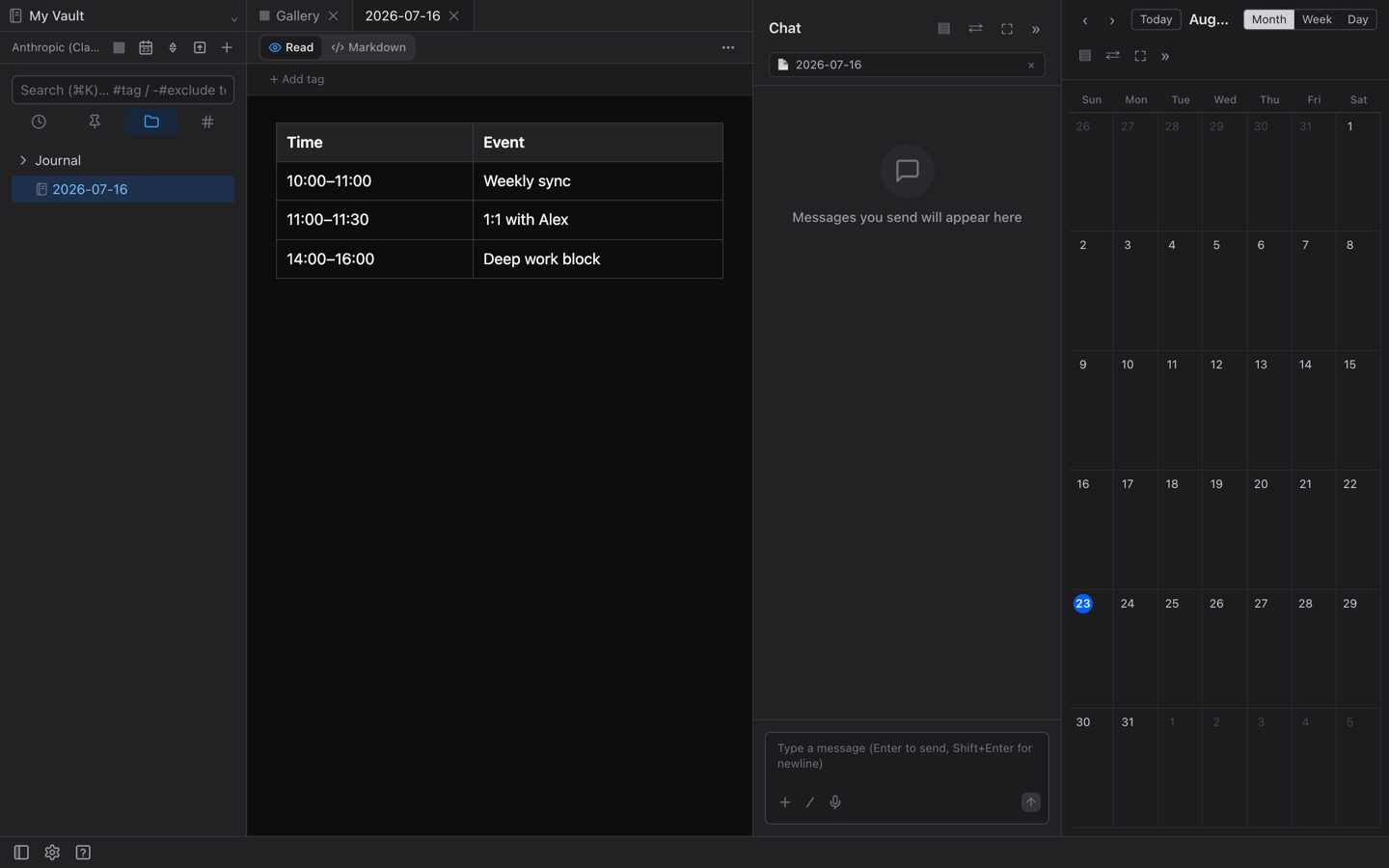
From 0.15.0, the month, week and day views of the calendar each have a menu item for importing that day’s events into the daily note. Choosing it fills the chat input with a request to the same effect. You can edit the date or range before sending, so if you want to import several days at once, adjust it there.
Use 2 — tally up events
Recounting past events is fiddly work in a calendar interface. monthlet has spreadsheets and charts, so you can ask for the whole thing at once.
Tally last month’s events by type and chart them.
monthlet read the events for July 2026, grouped and counted them by type, and put the result in a single note: the total and per-type counts, a bar chart of counts by type, a doughnut chart of the proportions, and the list of events the tally was based on. Which event was counted under which type is recorded below the charts.
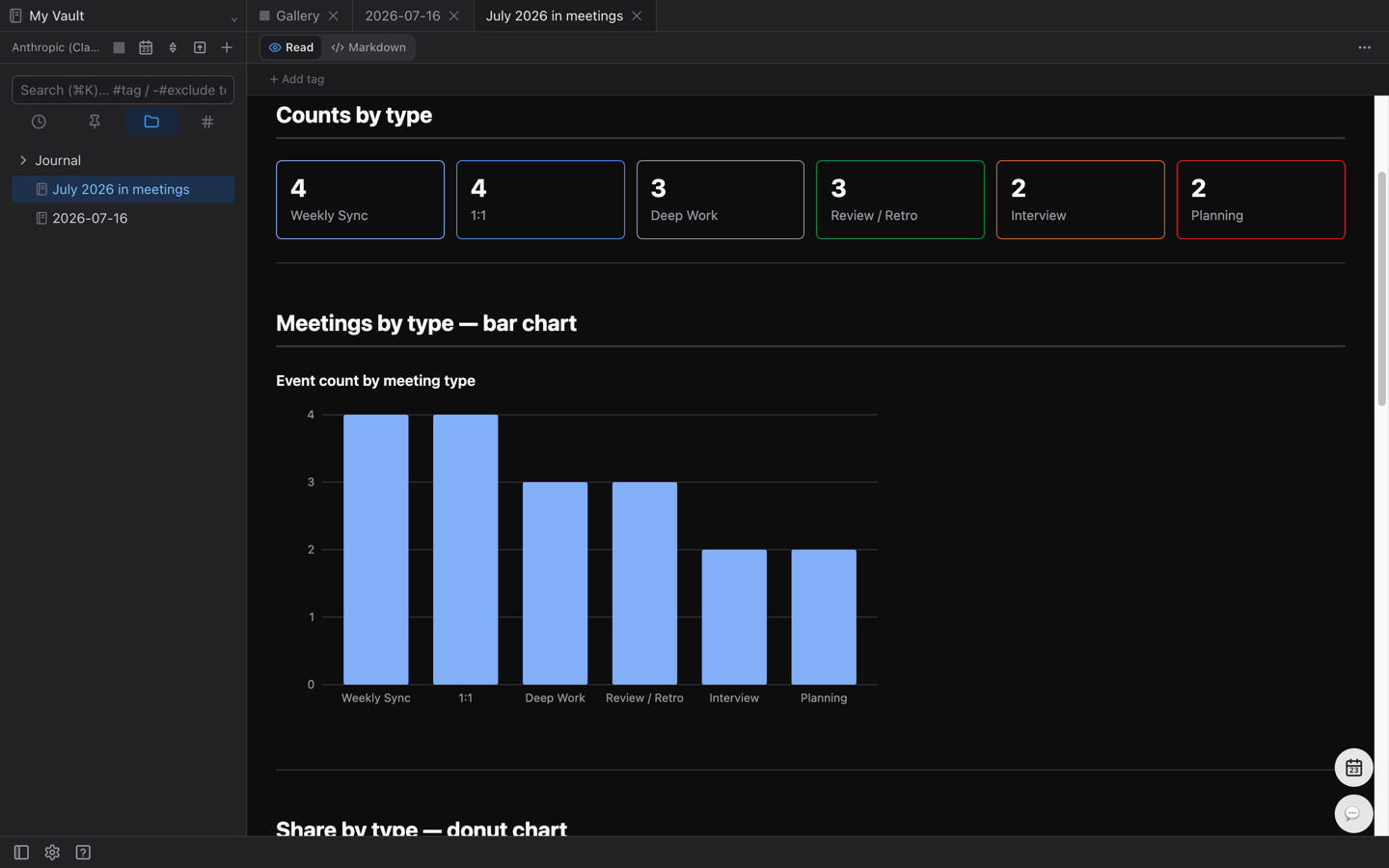
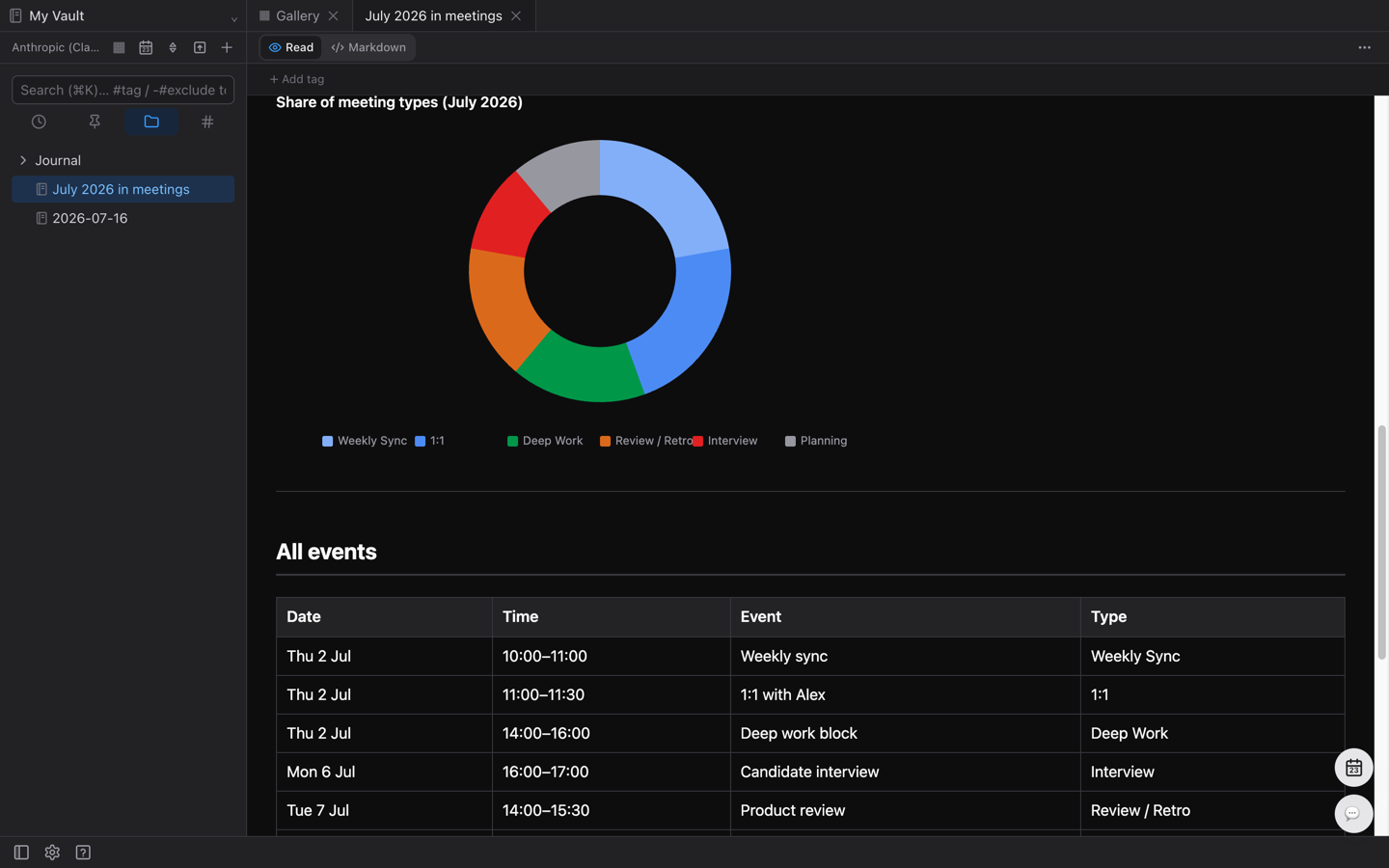
What matters is that the result stays as a note. The numbers still come from Google Calendar; only the tallied result becomes a note on your machine. Ask again next month and you get another note in the same shape.
Use 3 — create events
You can create as well as read. This is useful when you want to move an event written in a note over to the calendar.
Add the weekly review this Friday from 17:00 for one hour.
A confirmation dialog appears before anything is executed. It shows which calendar the event will be created in, when, and with what title. Nothing changes in the calendar until you run it, and cancelling means no event is created.
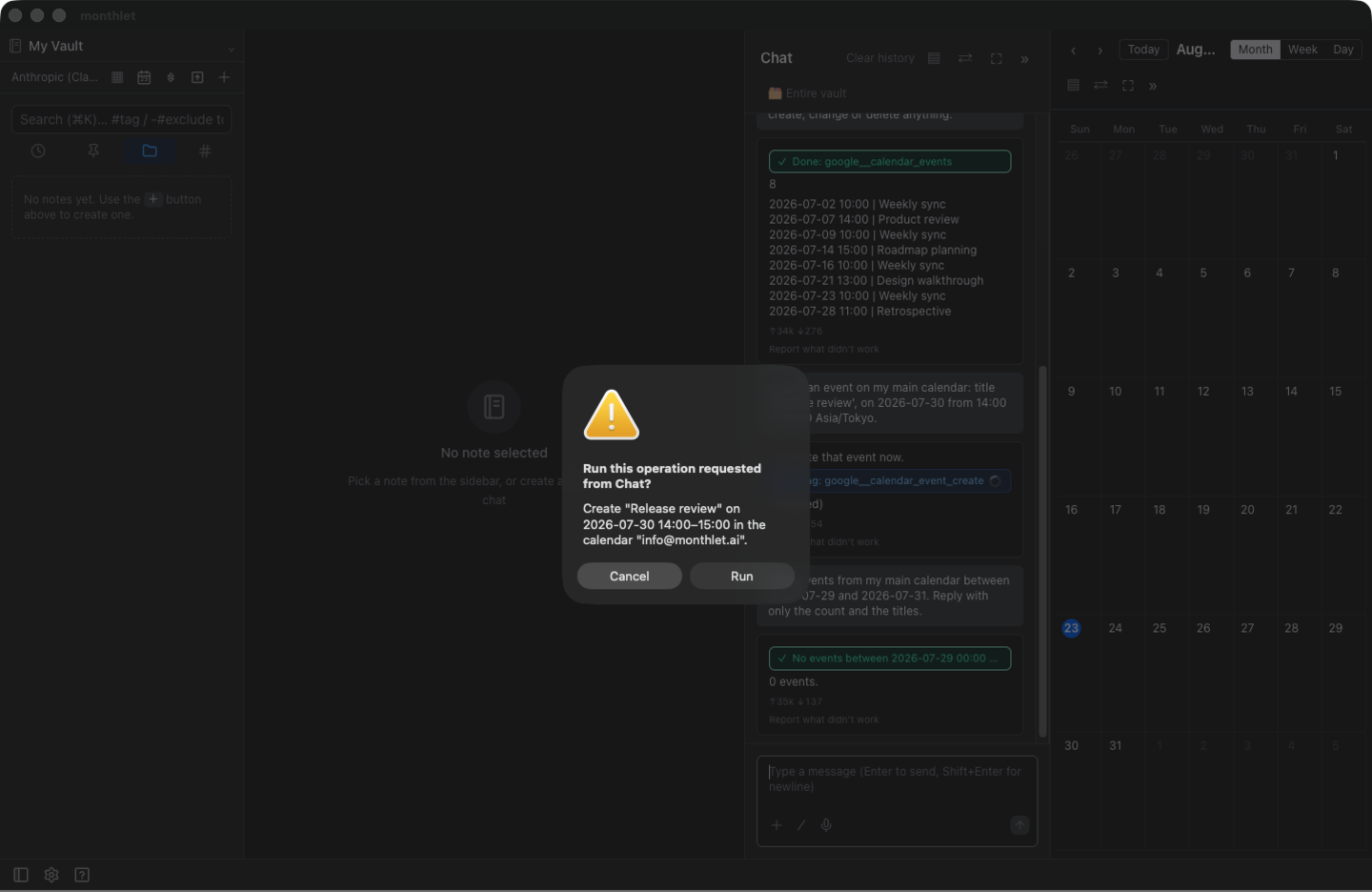
The Confirm marker that appears only on the create-event operation refers to this dialog. It is not a sign that permissions are missing. The text below the card also notes that operations involving writing, sending or deleting show a confirmation dialog before they run.
What is not possible yet
-
Events do not appear in the calendar view. Imported events become notes.
-
Updating and deleting events is not supported. From monthlet you can only read and create. Existing events are not rewritten or removed.
-
Event times are handled in your device’s timezone. You cannot set a separate timezone per calendar.
What comes next
In the previous post I wrote that each added service changes the permission scope requested from Google, and that each change means going through review again. Calendar followed the same path: the calendar permissions passed review before shipping in 0.14.0.
Updating and deleting events is not part of this release. Rewriting and deleting calendar events are hard to undo even with a confirmation step in monthlet, so that will be considered once reading and creating feel settled.
Try it
monthlet is currently distributed for macOS (Apple Silicon). (Added October 2026) The Windows version is now on the Microsoft Store. Enter your own AI API key and all features are available.
-
Download: https://monthlet.ai/download
-
Discord: https://discord.gg/aP4Hc7cJGU