 monthlet
As you keep using monthlet, notes pile up. Past a certain point it gets hard to remember which note holds what. Search helps, but keywords alone don’t always get you to the note you had in mind.
monthlet lets you link from one note to another. This release adds a note map, which draws those links as a diagram you can look at.
This journal entry covers the two ways to create links first, and then how to use the note map. Opening the map in a vault with no links at all just gives you scattered dots, which isn’t much of a map.
Creating links by hand
Select some text in the body of a note and right-click, and the menu shows Link to note. Choosing it opens a search field, where you find the note you want to connect to by title.
If the note you pick has headings, you can then choose one of them. Use that when you want to jump to a specific section of a long note. Otherwise, choose Whole note (top).
Once a link exists, the note on the receiving end shows a Linked from list at the bottom. When you open that note, you can see which notes point to it.
This list is added at display time and is not written into the note’s HTML file. The file keeps only what you wrote.
Asking the AI
You can also ask in chat: link this passage to the note about X. You don’t need to have the other note open.
There’s one design decision worth mentioning here. When the named note can’t be found, monthlet does not substitute a similarly named note.
Left to its own devices, an AI might link to something that looks close enough when “the note about X” doesn’t exist. Once a link like that is in place, it’s hard to notice later that it was wrong. Links are things you follow with your eyes afterwards, so a wrong link is more trouble than a missing one. In monthlet, when the given name isn’t found, the link is created with that name as written, and the app checks and tells you that the target doesn’t exist.
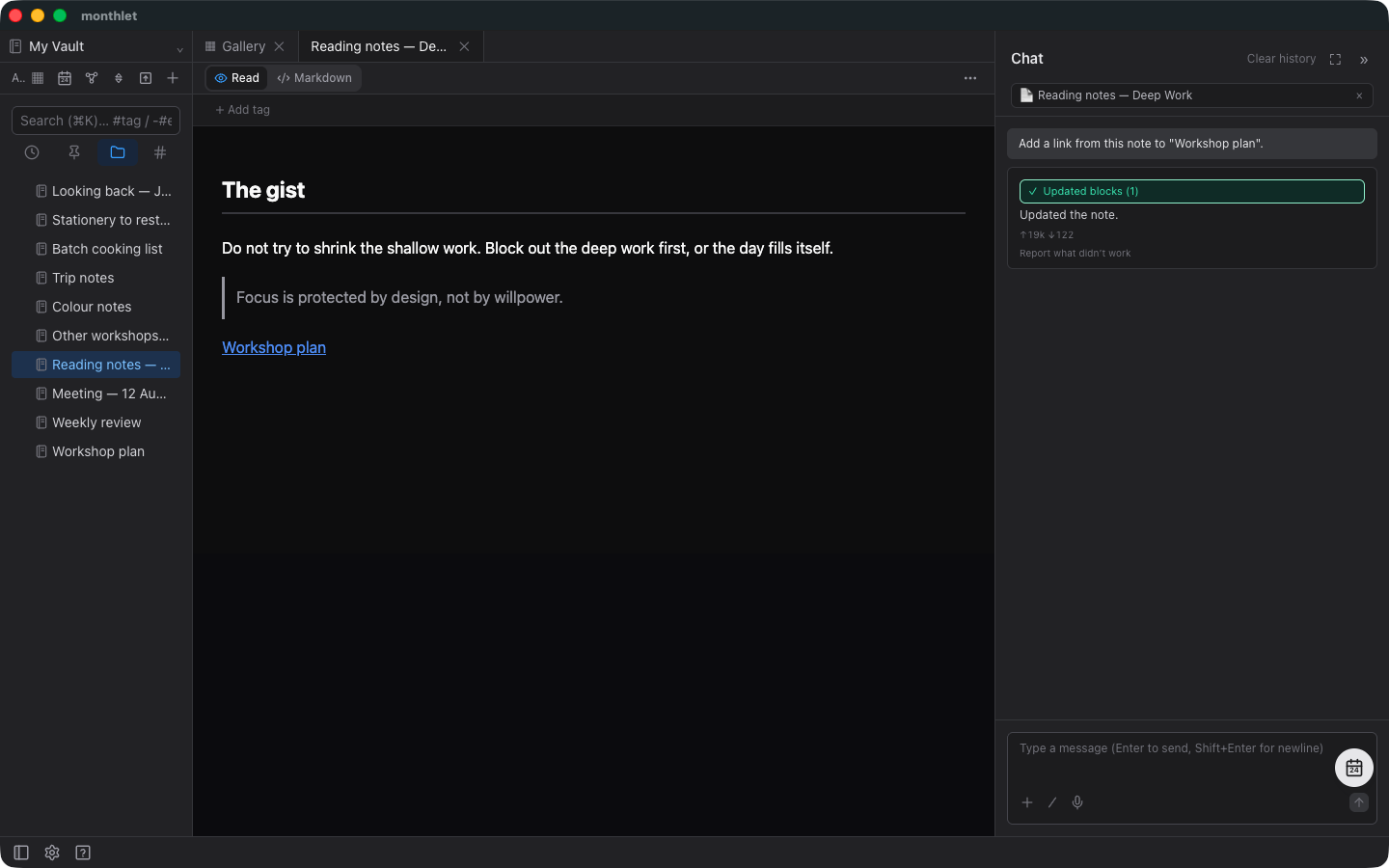
You can also ask the reverse question in chat. Ask which notes are related to this one, and you get the notes that are actually connected. That’s the result of following links, not of searching the text. Ask which notes aren’t connected to anything, and buried material surfaces.
The AI is looking at the same information as the note map described below. The only difference is whether you look at it or ask about it in words.
From here on it’s the actual interface. A short video gives you the overall picture first, which makes it easier to see where things are.
Opening the note map
The General tab of Settings has Enable the note map. It’s off by default. Turning it on adds an entry point in the sidebar.
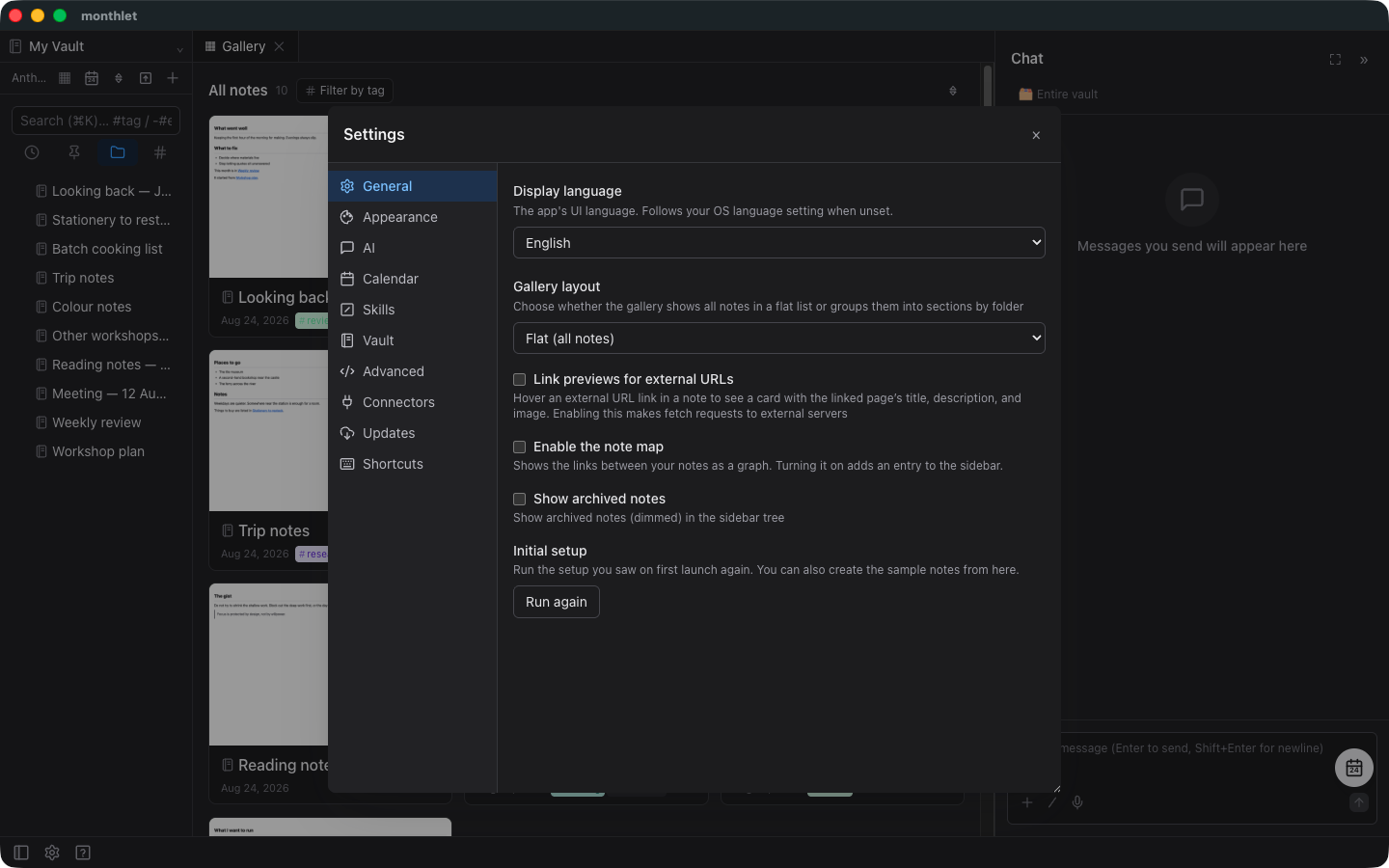
Leave it off if you don’t plan to use the feature. In a vault where you haven’t created links, opening it just lines up disconnected dots. The note map is for people who want to manage their notes by linking them together.
Reading the map
There are two display modes: All and Nearby.
All shows every note in the vault. Nearby centers on the note you have open and shows only what can be reached by following links from it. How far it follows is set by Depth, from 1 to 3 (the default is 2).
Colors come from tags, based on the first tag on each note. Clicking an item in the legend narrows the view to that tag alone. Turning off Show unlinked notes hides notes that aren’t connected to anything. Clearing Show names hides the names.
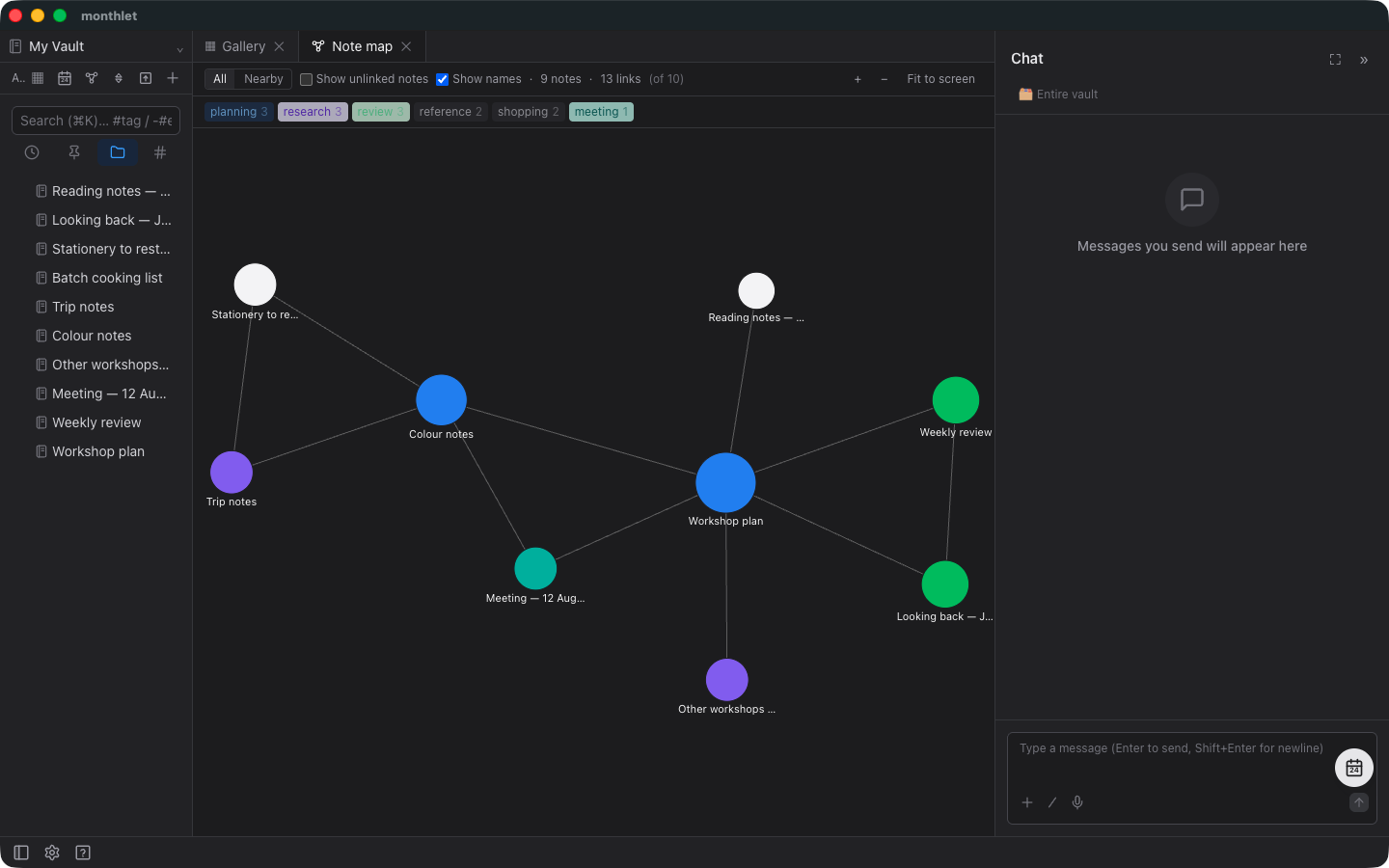
Clicking a node opens that note. Double-clicking switches to the Nearby view centered on it. You can drag a node to pin its position, zoom with the wheel, and return to the original framing with Fit to screen.
The big circles are the center of the vault
The size of a circle reflects how many links connect to that note. More links, bigger circle.
Looking at it, you tend to find centers you weren’t aware of. Usually they’re materials you referred back to many times, or notes you placed in a position that ties other notes together. Opening one lets you move outward from there, so it works as an entry point when you’re searching.
You can ask the same things in chat. Ask which notes have the most links and you get the ones at the center; ask which notes aren’t connected to anything and you get the ones at the edges. Whether you notice it by looking at the map or by asking in words, you’re looking at the same thing.
The map updates in real time
If you save, rename, move, or delete a note while the map is open, the diagram updates on the spot. You don’t need to reopen it.
Vaults with a lot of notes
The note map keeps no index of links. It re-reads the vault each time you open it. An index would be faster, but it raises the chance of picking up stale data and requires machinery to repair it. Being always current and keeping the mechanism simple took priority, so in vaults with very many notes the first render takes a few seconds.
Past 1,500 notes, the display switches to a lighter mode. Note names appear only on hover and when zoomed in, and the lines are drawn in a simplified way.
Give it a try
The note map is available from 0.16.0.
Once connections become visible, the next thing you notice is the notes that aren’t connected. Those are the circles left at the edges of the map, and you can ask about them in chat too. Start by picking up a note you wrote once and forgot.
monthlet is currently distributed for macOS (Apple Silicon). (Added October 2026) The Windows version is now on the Microsoft Store. Enter your own AI API key and all features are available.
-
Download: https://monthlet.ai/download
-
Discord: https://discord.gg/aP4Hc7cJGU